The Thinking Experiment

Coulomb's Law Inquiry Lab

Drag charges, compare force vectors, and use teacher-ready presets to move from qualitative predictions to superposition, components, 3D spatial reasoning, and equilibrium reasoning.

Inquiry first Practice mode 3D structures Teacher demo presets

Investigation Flow

Keep the physics sequence tight: predict, test, then explain with the representation below.

1. Predict

Choose a setup, decide whether the interaction should attract or repel, and estimate which force contribution should dominate.

2. Test

Drag the charges, change the charge values, and watch the force vectors and readouts update in real time.

3. Explain

Use the breakdown table to justify your claim with superposition, component reasoning, or equilibrium ideas.

Electrostatic Arena

Choose a setup, then drag a charge or adjust the sliders to test a prediction.

Current prompt

Controls

2D Builder

Start with an empty arena. Choose a charge value, add it, then drag charges into place.

Charge values

Adjust source and target magnitudes directly. For 3D scenes, click a charge to edit its position.

Practice Check

Auto-refreshes with the setup

Observe And Explain

Keep the math close to the picture: identify each contribution, compare directions, then use the table to justify the net result.

Positive charge Negative charge Target charge Contribution vector Net force Fx / Fy guides
Source Distance Interaction Fx (N) Fy (N) Fz (N) |F| (N)

Simulation Guide

Teacher's Guide To Coulomb's Law Inquiry Lab

Use this guide when introducing the simulation, reviewing vector meaning, or assigning independent inquiry work.

1. Start With The Scenario
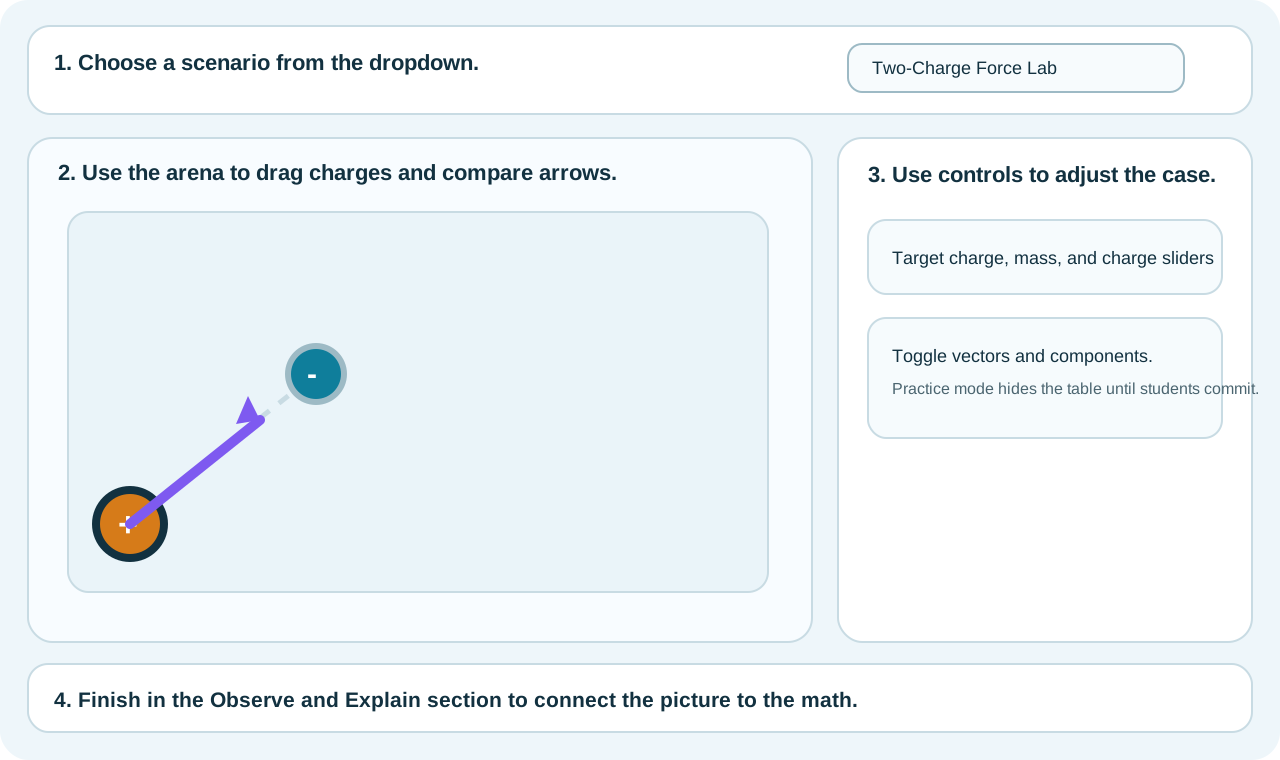
Annotated overview showing the scenario dropdown, arena, and analysis sections.

Pick a scenario from the dropdown first. Each scenario changes the geometry, units, and the kind of reasoning students should use.

  • Two Charges: sign logic, attraction vs repulsion, inverse-square changes.
  • Three on a Line: superposition in one dimension.
  • 2D Triangle: net force from components.
  • 3D Pyramid, Cube, Icosahedron: use rotation plus azimuth/elevation angles to reason in space.
  • Free 2D Builder: start with an empty arena and add up to five charges anywhere on the plane.
  • U-235 Fission: tiny distance, huge force.
  • Equilibrium Bridge: connect electric force to force balance.

2. Read The Vectors Correctly
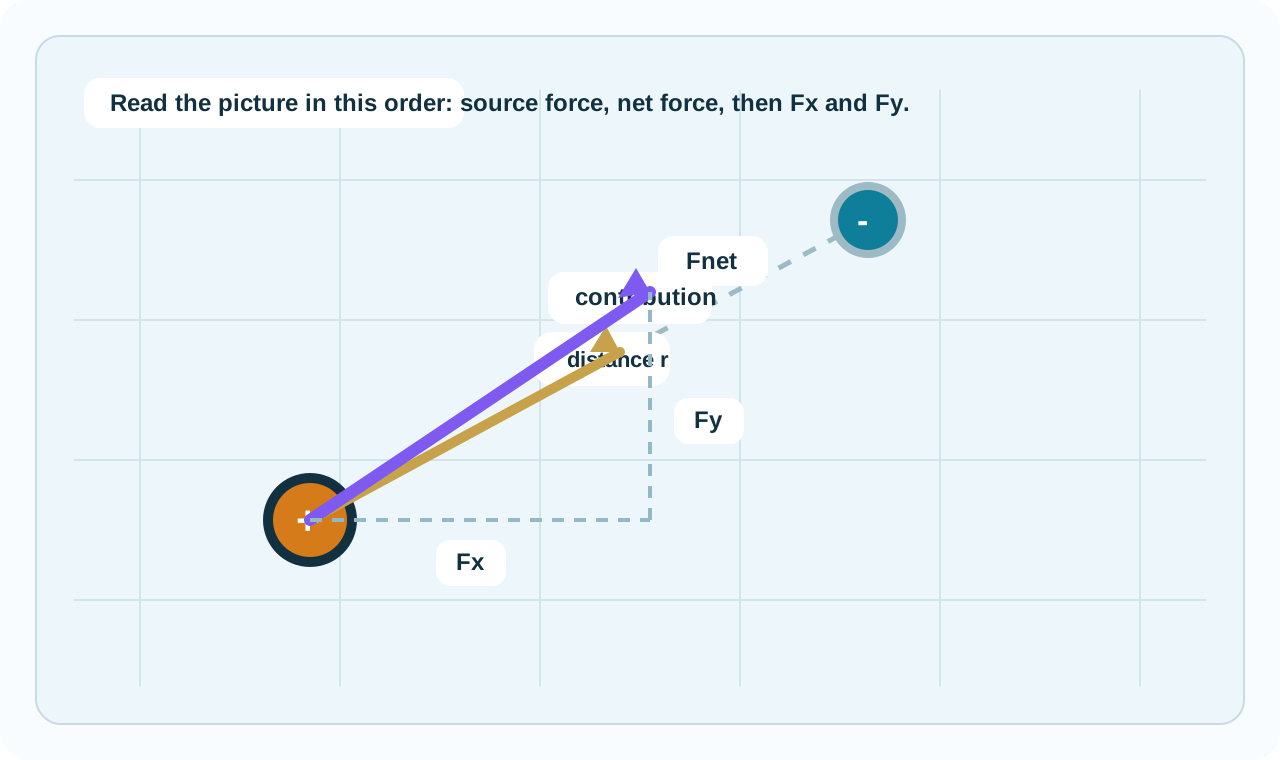
Annotated vector screenshot showing the contribution vector, net vector, and Fx and Fy component guides.

The arrows have different jobs. Students should say what each one means before looking at the table.

  • Gold arrows: individual force contributions from source charges on the target.
  • Purple arrow: the net force after adding all contributions.
  • Dashed Fx, Fy, and Fz guides: the component path used to reconstruct the 3D net vector.
  • Distance line: shows the separation used in Coulomb's law.

3. Inquiry Workflow

Use the simulation as a PER tool, not a calculator. Ask students to commit to a claim before they read the numbers.

  1. Choose the target charge and identify the source charges acting on it.
  2. Predict the direction of each force contribution using sign logic.
  3. Change charge magnitude or position and test the prediction.
  4. Only then use the breakdown table to explain the net result with evidence.

4. When To Show Components

Components are most helpful in two-dimensional setups. In one-dimensional cases, they add clutter without improving understanding.

  • Turn Show force vectors on whenever students are comparing directions.
  • Turn Show components and helper lines on when the net force has both x and y parts.
  • Turn Show angle guides on in 3D scenarios when students need azimuth and elevation, then hide it once they can infer the geometry.
  • For line or equilibrium scenarios, focus students on left/right reasoning and the force table.

5. Practice Mode
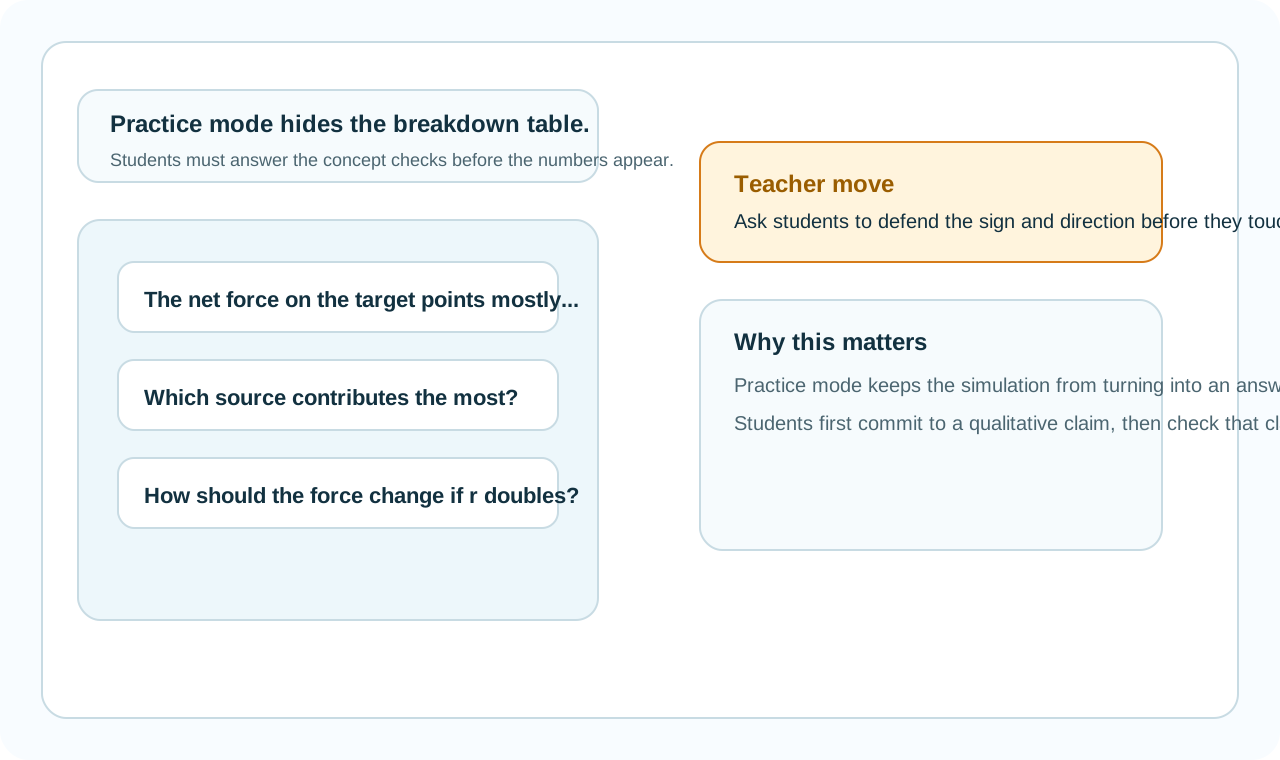
Annotated practice mode screenshot showing hidden quantitative readouts and concept questions.

Practice mode hides the quantitative breakdown until students answer the conceptual prompts. This keeps the activity inquiry-based instead of answer-hunting.

6. Teacher Moves

  • Ask “Which force is stronger and why?” before asking for a number.
  • Use the 2D Triangle case when students are ready to add vectors by components.
  • Use Equilibrium Bridge after Coulomb's law to connect electrostatics to force-balance problems.
  • Use U-235 Fission to show that the same equation behaves dramatically at tiny scales.

Student Guide

How Students Should Use The Simulation

Use this when you get stuck or need a reminder about what each arrow and control means.

1. Pick The Scenario

Overview of the scenario menu, arena, and analysis sections.

Start by choosing the scenario your class is working on. Different scenarios are designed for different problem types.

2. Read The Picture

Vector screenshot showing contribution vectors, the net vector, and component guides.
  • Charge colors tell you whether the charge is positive or negative.
  • Gold force arrows are individual force contributions on the target.
  • Purple arrow is the net force after adding all contributions.
  • Fx, Fy, and Fz guides break the net force into components when that helps.

3. Use The Inquiry Routine

  1. Predict the direction of the force before changing anything.
  2. Drag charges or change values to test the prediction.
  3. In 3D scenes, rotate the view and use the angle labels before trusting a single camera angle.
  4. Use the table and metric cards only after you have a claim.
  5. In practice mode, answer the questions before the numbers appear.

4. Special Note For Suspended Spheres

In the equilibrium scenario, look for the strings, tension, weight, the electric force, and the angle. That scenario is about force balance, not just Coulomb's law by itself.